
Windows PowerShell Opens and Closes | How To Solve
Although atypical, Windows PowerShell can sometimes go nuts, opening and closing on what seems to be an endless loop. Unfortunately, there’s no definite guide on how to fix this issue, the reasons being so diverse in nature. However, tracking down and removing PowerShell from the startup menu is a good place to start.
Slowly move to more complex solutions like disabling and re-enabling Windows PowerShell or changing the manifest settings. These are proven ways to deal with issues due to which Windows PowerShell opens and closes.
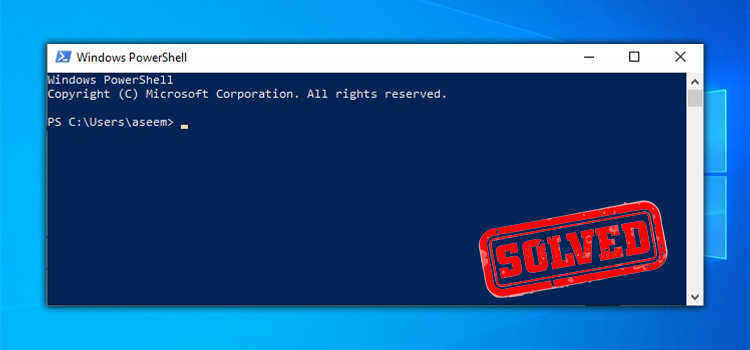
Why Does PowerShell Keep Opening and Closing?
A scheduled task trying to install a mal Chrome extension is the most probable cause behind Windows PowerShell misbehaving. If you cannot find the task and delete it, PowerShell will keep opening and closing.
Other possible reasons include Windows PowerShell somehow ending up in the Windows Start-up folder. Besides, it might be due to its startup status being enabled. Either way, removing Windows PowerShell from the startup folder will help eradicate the annoyance.
How Do I Stop Windows PowerShell From Opening and Closing?
Try using Task Manager to simply terminate the program if it has been running in the background. However, if that does not do the trick, check the Windows startup folder to see if there’s a PowerShell shortcut. Remove any such shortcuts if found.
Use the tricks below if the issue persists.
Disable and Re-Enable Windows PowerShell
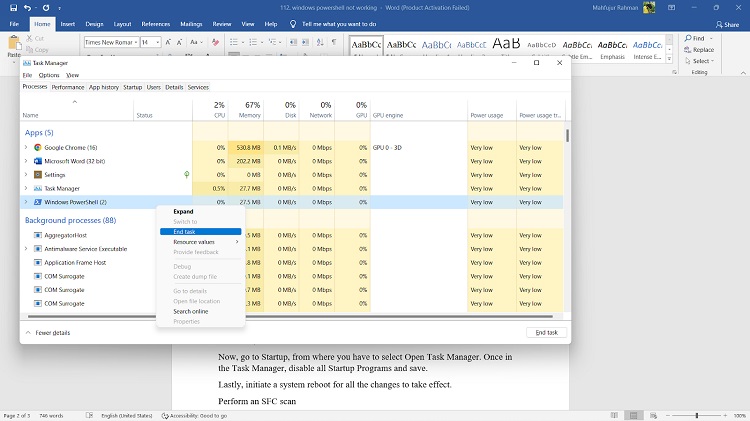
Open the Task Manager app using the Ctrl + Shift + Esc shortcut and look for Windows PowerShell. Upon finding it, select it by clicking on it. Next, hover over to the End task button and press it. Doing so will terminate the PowerShell program. You can now close the Task Manager window.
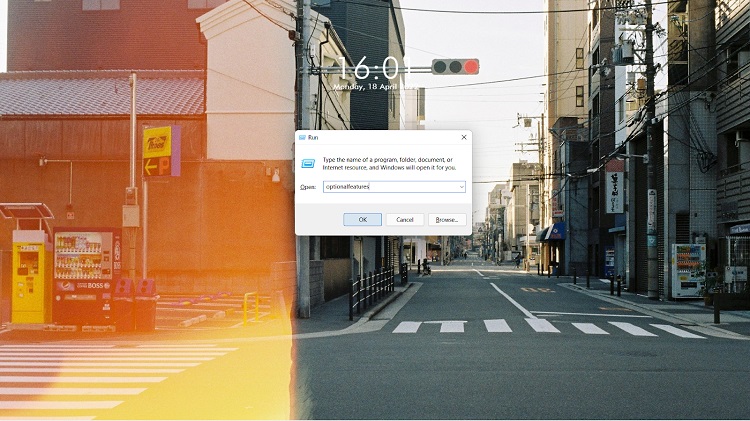
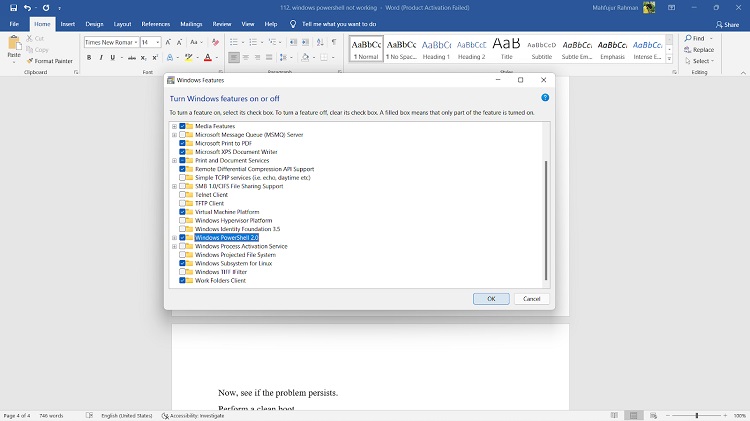
After that, press Windows + R to open the Run dialog box. Type ‘optionalfeatures’ in the text field and press Enter to open a new window called Windows Features.
Next, scroll down to find Windows PowerShell and disable it using the checkbox on its left.
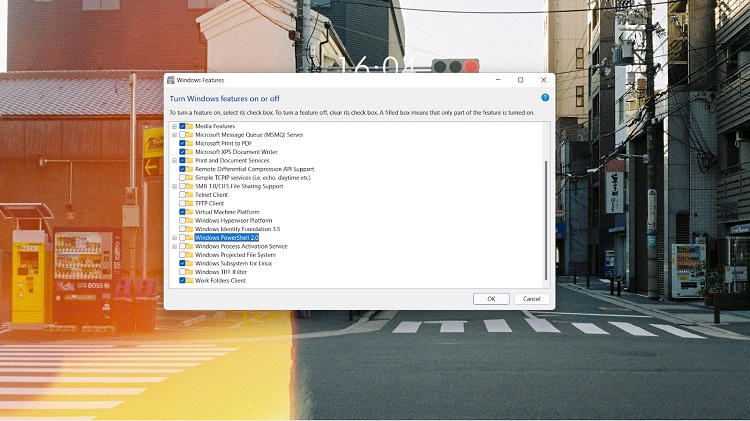
Press OK and close the window. A system reboot is then required so that the changes get updated.
Now, follow the above steps again until the point where you locate Windows PowerShell from the Windows Features menu. That is because we want to enable PowerShell this time. So, tick the box again and see if that solved the issue.
Change PowerShell $Manifest Settings
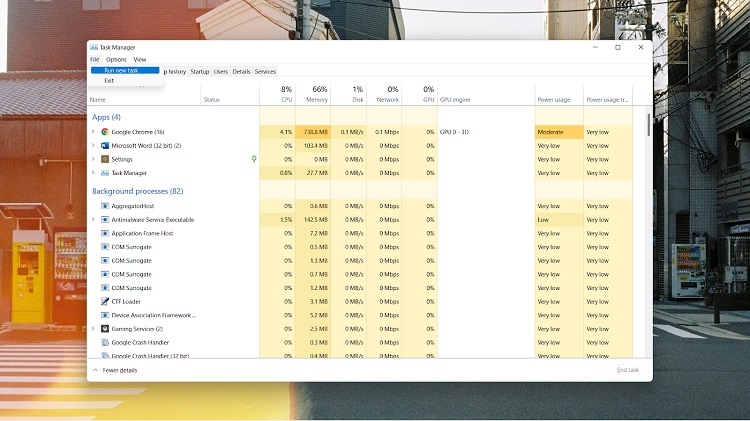
Press Ctrl + Shift + Esc to open the Task Manager. Then, click on File and select Run New Task.
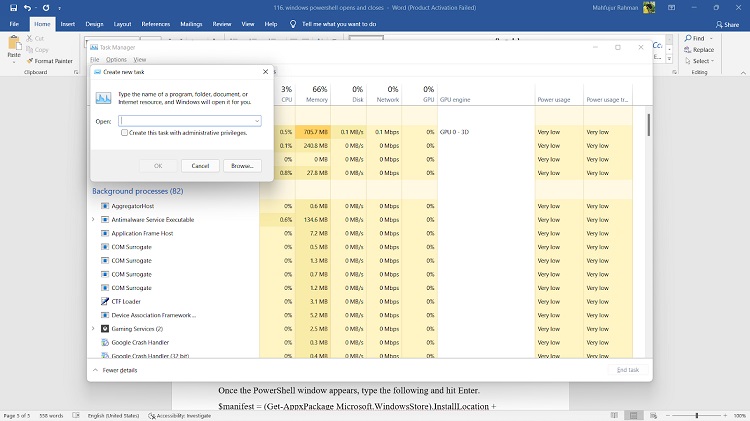
A new window named Create new task will pop up with an empty text field.
Inside the text field, type PowerShell.
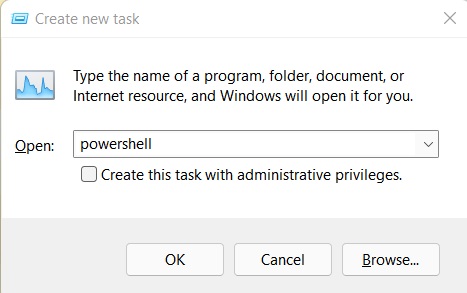
Below that, you will find a check box next to Create this task with administrative privileges. Check the box and press OK.
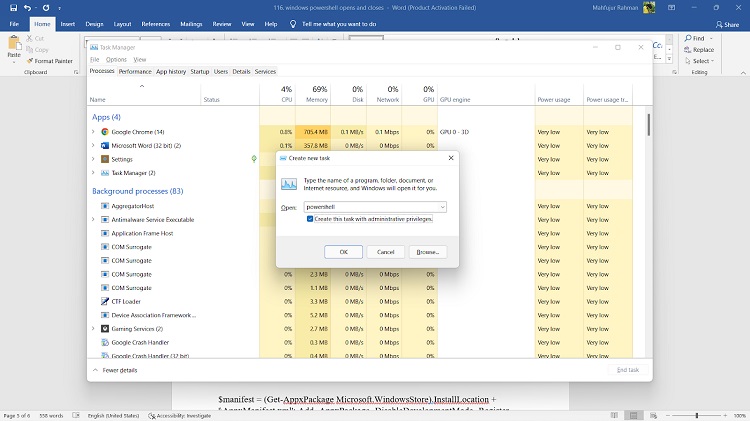
Once the PowerShell window appears, type the following and hit Enter.
$manifest = (Get-AppxPackage Microsoft.WindowsStore).InstallLocation + ‘\AppxManifest.xml’; Add- AppxPackage -DisableDevelopmentMode -Register $manifest
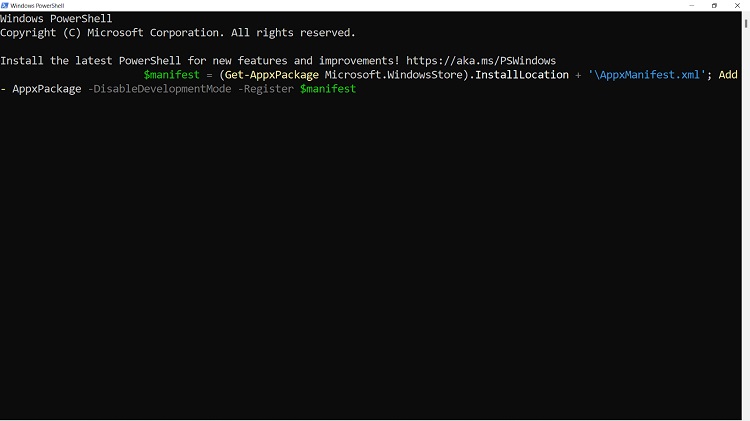
After that, close the PowerShell window and restart your computer. It should solve the PowerShell opening and closing problem.
Conclusion
If none of the above methods work, there might be corrupted system files on your computer. In that case, you can try refreshing your user account on the pc. But before that, you have to log in using a user set as an administrator for the pc. Also, don’t forget to keep the necessary backups.
Subscribe to our newsletter
& plug into
the world of technology





Solution in windows 10: (if none of the above solved your problem:)
go to System -> About ->Advanced System Settings ->System Properties -> environment variables and edit “__PSLockDownPolicy” with variable value “0” (delete the contents of variable value first, if any) – If the variable doesn’t exist create it.
Now PowerShell should work again.
Thank you so much for sharing! We appreciate your help!